Business account administrators can assign physical or virtual cards to authorised users directly from the Moneybase Business portal.
Assigning a card
- Log in to your Moneybase Business account.
- From the left-hand menu, select Administration.
- Select Cards.
- Click Assign Card.
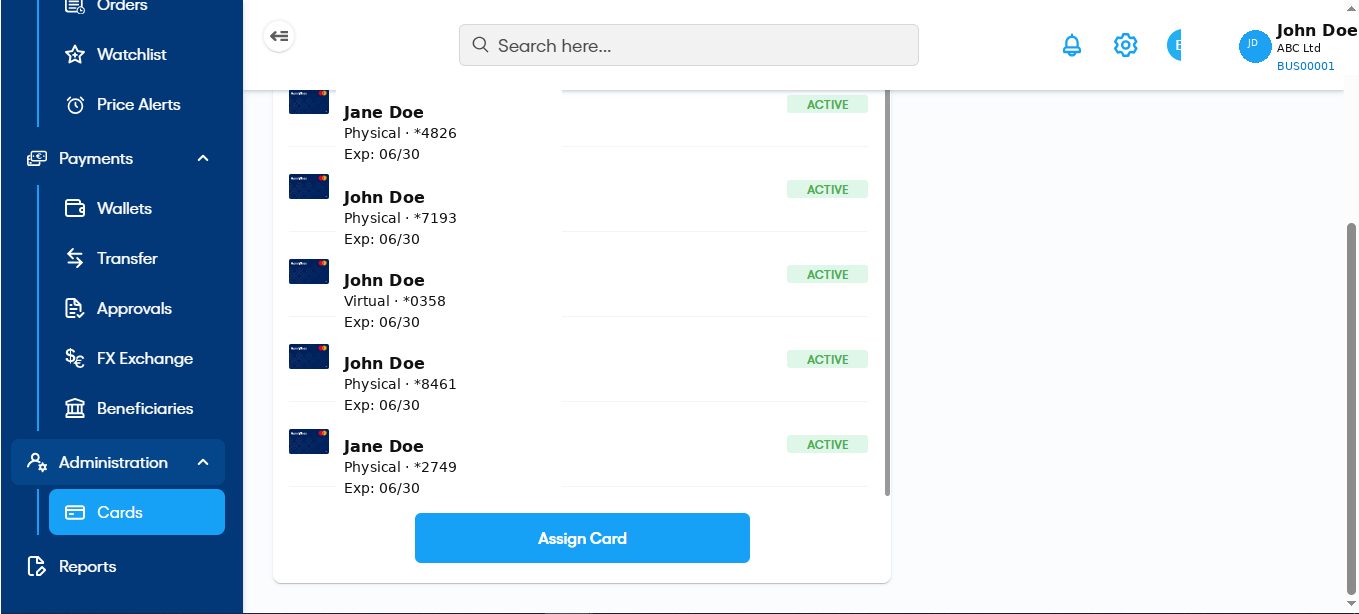
Step 1: Select the card type
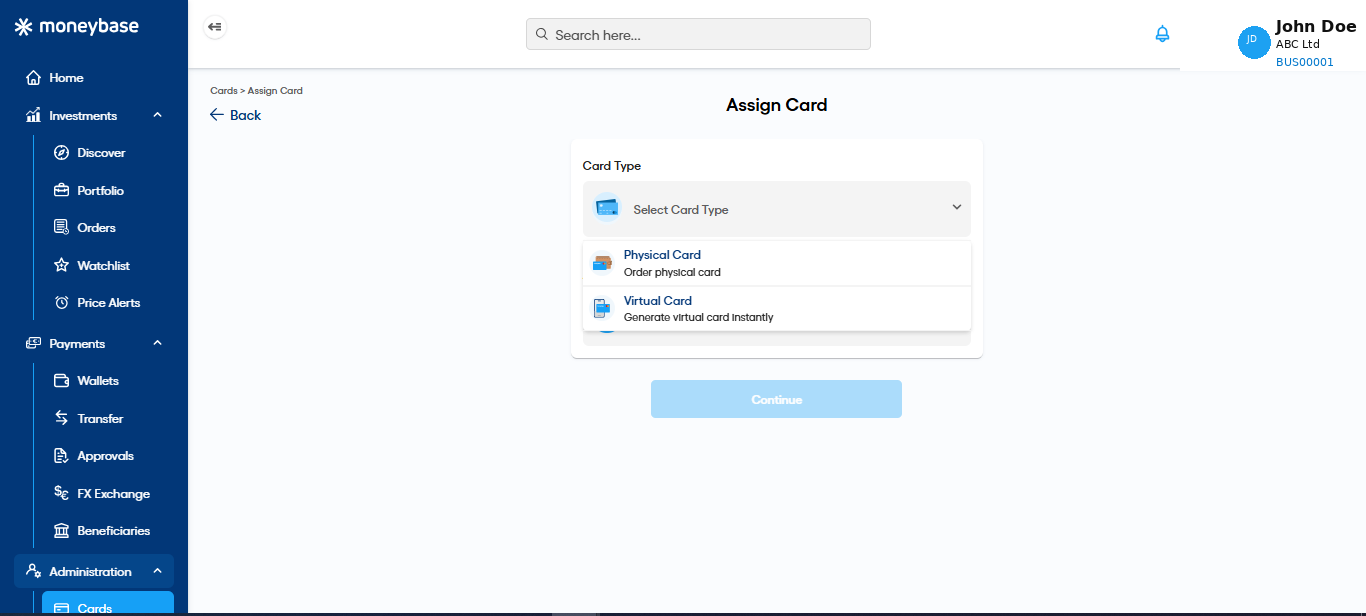
Choose the type of card you would like to assign:
- Physical Card – a physical card that will be delivered to the user's registered address.
- Virtual Card – a digital card that can be used immediately for online purchases.
Once selected, click Continue.
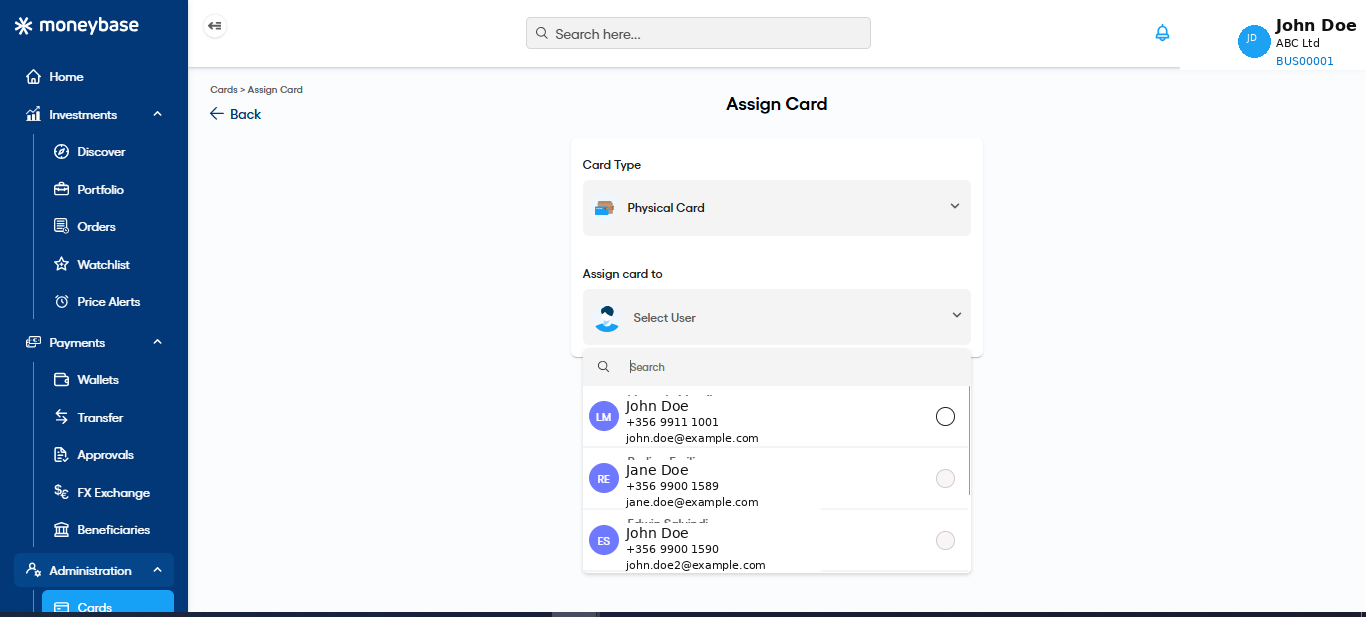
Step 2: Select the user
Choose the user who will be assigned the card.
Only authorised users on the business account will appear in the list.
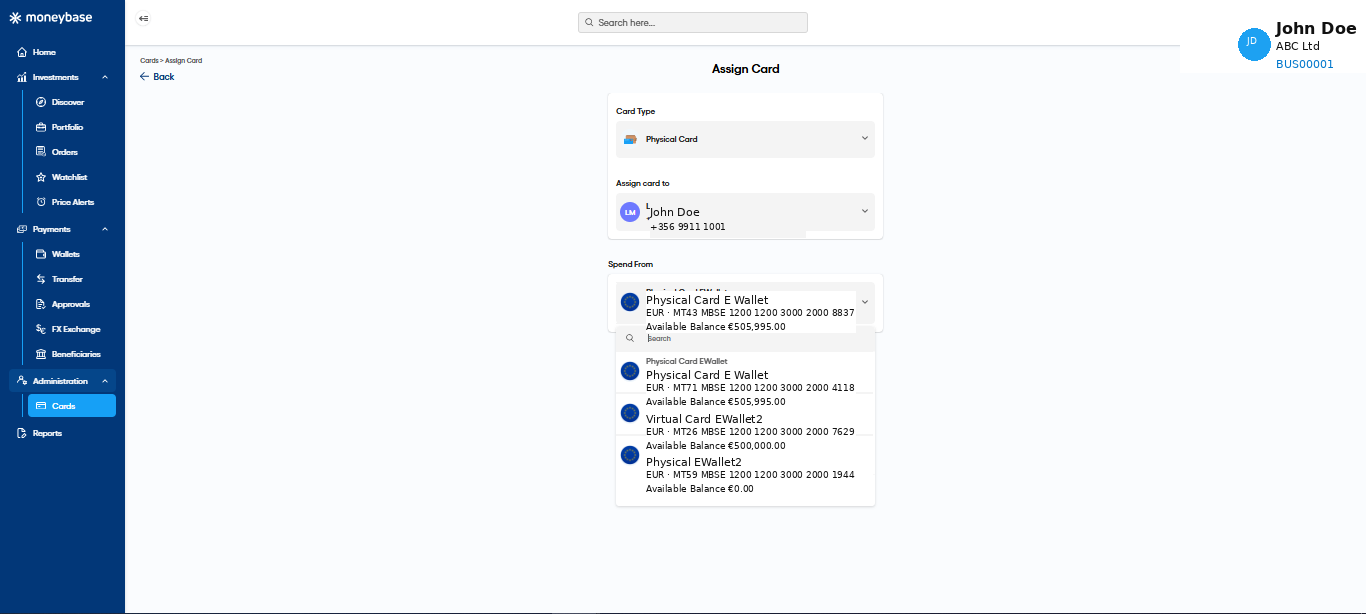
Step 3: Select the spending wallet
Choose the wallet that the card will be linked to.
Transactions made using the card will be deducted from the selected wallet.
Step 4: Confirm delivery address (Physical Cards only)
If you are assigning a physical card, confirm the delivery address for the cardholder.
If required, update the address before proceeding.
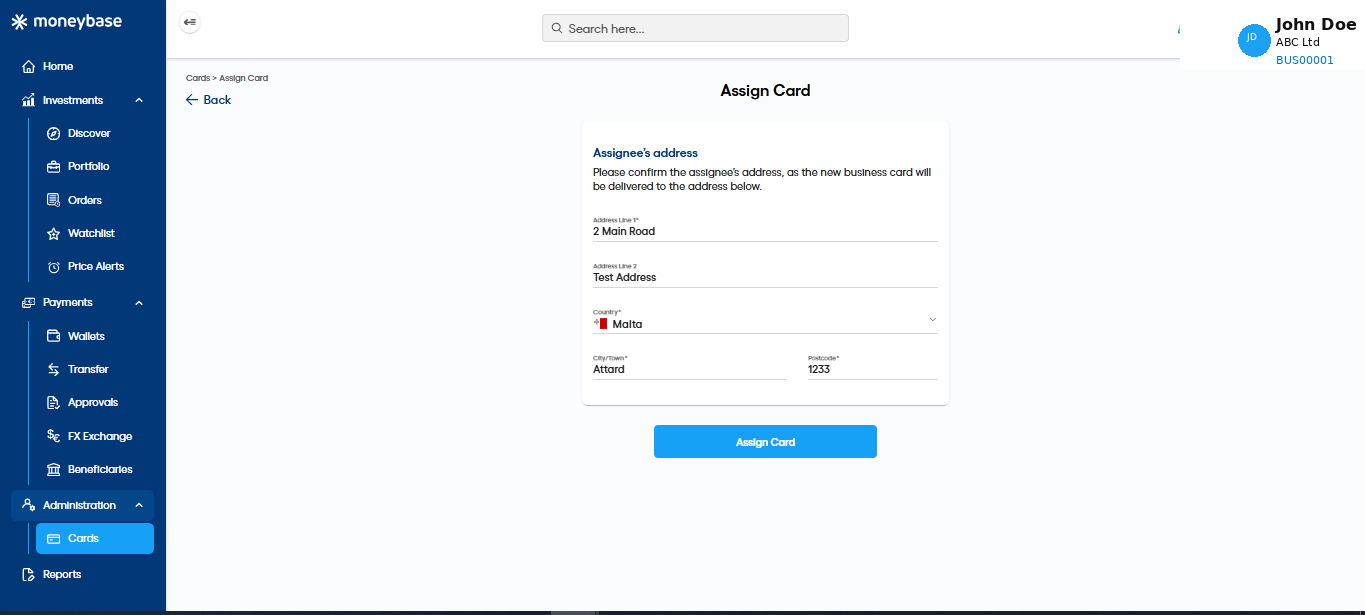
Step 5: Complete the assignment
Review the information and click Assign Card.
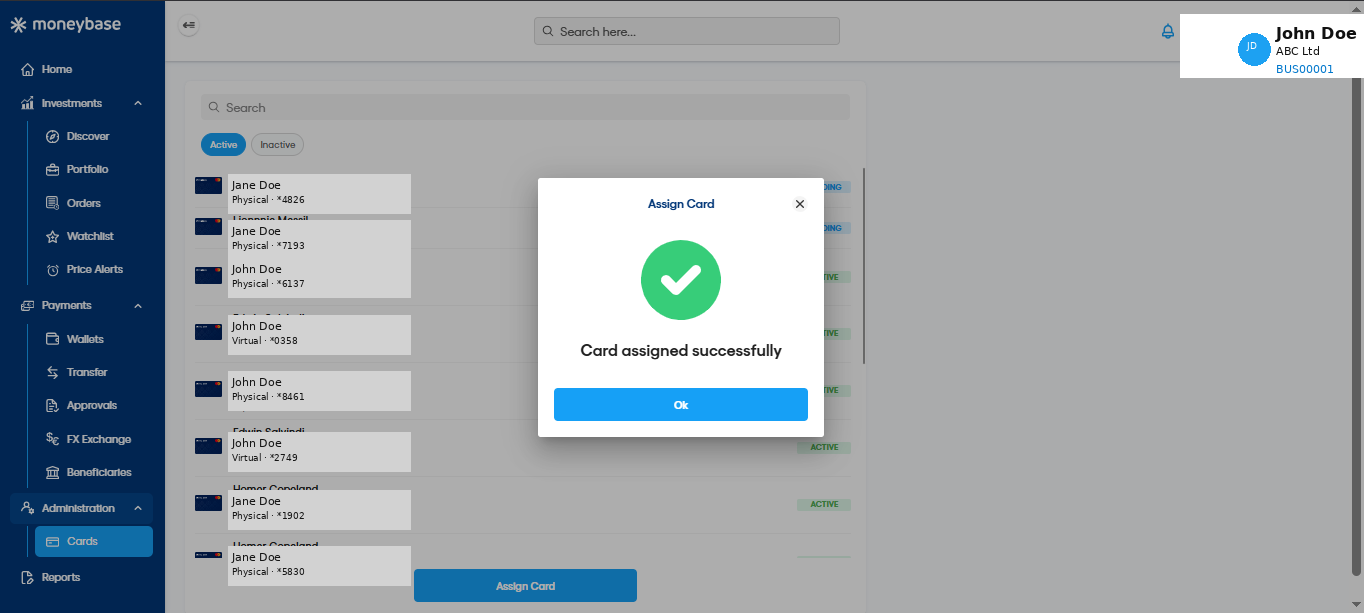
A confirmation message will be displayed once the card has been successfully assigned.
Important information
- Only users with the appropriate permissions can assign cards.
- Physical cards are delivered to the cardholder's registered address.
- Virtual cards are available immediately after assignment.
- The card will be linked to the wallet selected during the setup process.
Was this article helpful?
That’s Great!
Thank you for your feedback
Sorry! We couldn't be helpful
Thank you for your feedback
Feedback sent
We appreciate your effort and will try to fix the article